> ## Documentation Index
> Fetch the complete documentation index at: https://docs.multisynq.io/llms.txt
> Use this file to discover all available pages before exploring further.
# Hello World Tutorial
> Build your first Multisynq application - a synchronized counter that updates in real-time across all users
## Introduction
Welcome to your first Multisynq application! This tutorial will guide you through building a simple but powerful real-time counter that synchronizes perfectly across all users. When one user clicks the counter, it resets for everyone instantly.
Try the working example on CodePen
Create your own copy to experiment
## What You'll Learn
By the end of this tutorial, you'll understand:
1. **How to include the Multisynq client library** in your application
2. **The Model-View architecture** that powers Multisynq apps
3. **Event-driven communication** between models and views
4. **Session sharing** using QR codes and URLs
## Try It Live
**Test Real-time Sync**: Click the QR code in the demo above to open a second instance. Notice how both counters stay perfectly synchronized!
## Understanding the Session Badge
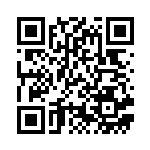
The **session badge** (colored rectangle with QR code) indicates which session you're in. Users seeing the same badge colors and code word are guaranteed to be synchronized. Any change to the model code creates a new session with a different badge.
## Setting Up Multisynq
### 1. Include the Client Library
Add the Multisynq client library to your HTML:
```html theme={null}
```
### 2. Get Your API Key
Sign up for free at multisynq.io to get your API key
## Building the Application
Every Multisynq application consists of two parts:
**Handles computation and state**
* Runs identically on all instances
* Manages application logic
* Never directly accesses the view
**Handles UI and user input**
* Processes user interactions
* Updates the display
* Can read from model (read-only)
**Critical Rules**:
* Models **MUST NEVER** communicate directly with views
* Views **MUST NEVER** write directly to models
* All communication happens through publish/subscribe events
## The Model Code
Our counter model is surprisingly simple:
```javascript theme={null}
class MyModel extends Multisynq.Model {
init() {
this.count = 0;
this.subscribe("counter", "reset", this.resetCounter);
this.future(1000).tick();
}
resetCounter() {
this.count = 0;
this.publish("counter", "changed");
}
tick() {
this.count++;
this.publish("counter", "changed");
this.future(1000).tick();
}
}
MyModel.register("MyModel");
```
### Breaking Down the Model
#### `init()` - Model Initialization
```javascript theme={null}
init() {
this.count = 0;
this.subscribe("counter", "reset", this.resetCounter);
this.future(1000).tick();
}
```
* **`this.count = 0`**: Initialize our counter state
* **`this.subscribe("counter", "reset", this.resetCounter)`**: Listen for reset events from the view
* **`this.future(1000).tick()`**: Schedule the first tick in 1 second
**Important**: `init()` only runs once when a session starts. After that, the model state is automatically saved and restored for new users joining.
#### `resetCounter()` - Handle Reset Events
```javascript theme={null}
resetCounter() {
this.count = 0;
this.publish("counter", "changed");
}
```
When a user clicks the counter, this method:
1. Resets the count to 0
2. Notifies all views that the counter changed
#### `tick()` - The Heartbeat
```javascript theme={null}
tick() {
this.count++;
this.publish("counter", "changed");
this.future(1000).tick();
}
```
This method runs every second:
1. Increments the counter
2. Notifies views of the change
3. Schedules the next tick
**Future Messages**: `this.future(1000).tick()` is a powerful Multisynq feature that schedules method calls in the future. This ensures perfect synchronization across all users.
#### `register()` - Class Registration
```javascript theme={null}
MyModel.register("MyModel");
```
Every model class **must** be registered so Multisynq can instantiate it.
## The View Code
The view handles user interface and interactions:
```javascript theme={null}
class MyView extends Multisynq.View {
constructor(model) {
super(model);
this.model = model;
countDisplay.onclick = event => this.counterReset();
this.subscribe("counter", "changed", this.counterChanged);
this.counterChanged();
}
counterReset() {
this.publish("counter", "reset");
}
counterChanged() {
countDisplay.textContent = this.model.count;
}
}
```
### Breaking Down the View
#### `constructor(model)` - View Setup
```javascript theme={null}
constructor(model) {
super(model);
this.model = model;
countDisplay.onclick = event => this.counterReset();
this.subscribe("counter", "changed", this.counterChanged);
this.counterChanged();
}
```
* **`super(model)`**: Call the parent View constructor
* **`this.model = model`**: Store model reference for read-only access
* **`countDisplay.onclick = ...`**: Set up click handler
* **`this.subscribe("counter", "changed", ...)`**: Listen for counter changes
* **`this.counterChanged()`**: Update display immediately
#### `counterReset()` - Handle User Clicks
```javascript theme={null}
counterReset() {
this.publish("counter", "reset");
}
```
When the user clicks, publish a reset event that the model will receive.
#### `counterChanged()` - Update Display
```javascript theme={null}
counterChanged() {
countDisplay.textContent = this.model.count;
}
```
Update the displayed number when the model changes.
## HTML Structure
The HTML is minimal:
```html theme={null}
Multisynq Hello World
Multisynq Hello World
0
Click the counter to reset it!
```
## Starting Your Session
The magic happens with `Multisynq.Session.join()`:
```javascript theme={null}
Multisynq.Session.join({
apiKey: "your_api_key_here",
appId: "com.example.hello-world",
name: Multisynq.App.autoSession(),
password: Multisynq.App.autoPassword(),
model: MyModel,
view: MyView
});
```
### Session Parameters
Your API key from [multisynq.io/coder](https://multisynq.io/coder)
Unique identifier for your app (e.g., "com.example.hello-world")
Session name. Use `Multisynq.App.autoSession()` for auto-generated names
Session password. Use `Multisynq.App.autoPassword()` for auto-generated passwords
Your Model class
Your View class
### What Happens When You Join
1. **Connect** to a nearby Multisynq reflector
2. **Initialize or restore** the model state
3. **Create** your view instance
4. **Start** the event loop
5. **Begin** synchronization with other users
## Testing Your App
### 1. **Single User Testing**
Start by testing the basic functionality with one browser tab.
### 2. **Multi-User Testing**
Open your app in multiple browser tabs or devices to test synchronization.
### 3. **QR Code Sharing**
Use QR codes to easily share sessions with mobile devices.
**Mobile Testing**: The QR code feature makes it incredibly easy to test your app on mobile devices. Just scan the code with your phone's camera!
## Common Patterns
### Automatic Helpers
Multisynq provides helpful utilities:
```javascript theme={null}
// Generate random session names
name: Multisynq.App.autoSession(), // Returns something like "abc12"
// Generate random passwords
password: Multisynq.App.autoPassword(), // Returns a secure password
```
### Event Scoping
Use meaningful scope names for your events:
```javascript theme={null}
// Good: Descriptive scopes
this.subscribe("game", "playerJoined", this.handlePlayerJoined);
this.subscribe("ui", "buttonClicked", this.handleButtonClick);
// Avoid: Generic scopes
this.subscribe("events", "something", this.handleSomething);
```
### State Management
Keep your model state simple and serializable:
```javascript theme={null}
// Good: Simple data types
this.count = 0;
this.players = [];
this.gameState = "waiting";
// Avoid: Complex objects or functions
this.domElement = document.getElementById("something"); // No!
this.callback = () => {}; // No!
```
## Next Steps
Learn about continuous animations and multiple models
Build a real-time chat application
Understand the core concepts in depth
Explore the complete Multisynq API
## Troubleshooting
* Check that your API key is valid
* Ensure `MyModel.register("MyModel")` is called
* Verify the model's `tick()` method is being called
* Confirm all users have the same `appId`
* Check that all users joined the same session name
* Ensure the model code is identical across all instances
* Verify the QR code generation service is accessible
* Check that the URL in the QR code is correct
* Test the URL manually in a browser
## Complete Example
Here's the full working example you can copy and paste:
```html theme={null}
Multisynq Hello World
Multisynq Hello World
Counter updates every second. Click to reset!
0
Open this page in multiple tabs to see real-time sync!
```
Don't forget to replace `"your_api_key_here"` with your actual API key from [multisynq.io/coder](https://multisynq.io/coder)!
## Summary
Congratulations! You've built your first Multisynq application. You learned:
* ✅ How to structure a Multisynq app with Models and Views
* ✅ Event-driven communication using publish/subscribe
* ✅ Future messages for time-based events
* ✅ Session management and sharing
* ✅ Real-time synchronization across multiple users
This simple counter demonstrates all the core concepts you'll use in more complex Multisynq applications. The same patterns scale from simple demos to full-featured collaborative applications!